

For clients / Reviewing
Review a plan
Open a plan your agency shared, move through its pages, look at the photos and comment.
Steps
-
Open Plans to approve and select the plan's name.


Waiting counts the posts and stories that still need you. The Grid column says Not chosen yet until you choose a grid. The list is sorted by Approve by, the day your agency asks you to approve the plan by, soonest first. Plans without a date come last. Select the Approve by heading to reverse the order; on a phone, select Sort by Approve by date.
-
Move through the plan. It opens full screen on its cover, one page at a time. Scroll, or use the arrow keys, Page Up and Page Down, to go to the next or previous page.
After the cover come the feed pages, then each post followed by its alternatives, then Story designs and each story. A plan with one grid has a Feed page; with alternative grids there is a page for each, Grid 1, Grid 2 and so on. A long feed carries on over more pages. A post page shows its title, its planned date such as "Planned 24 Nov 2026", its topic, photos and videos, captions and hashtags.
-
Use the pages menu on the left to jump to any page.
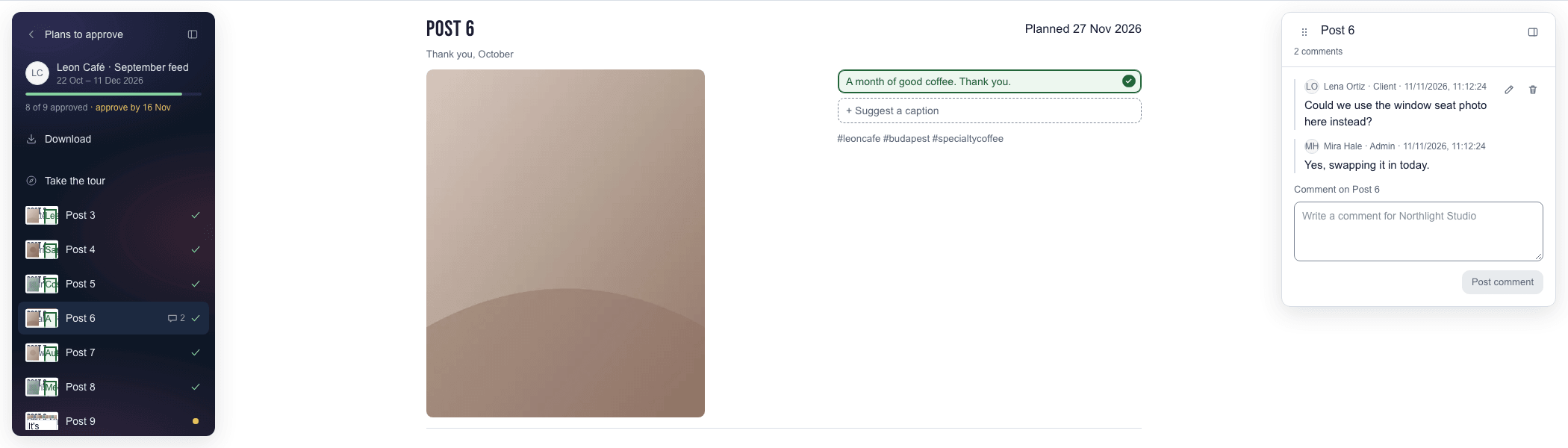
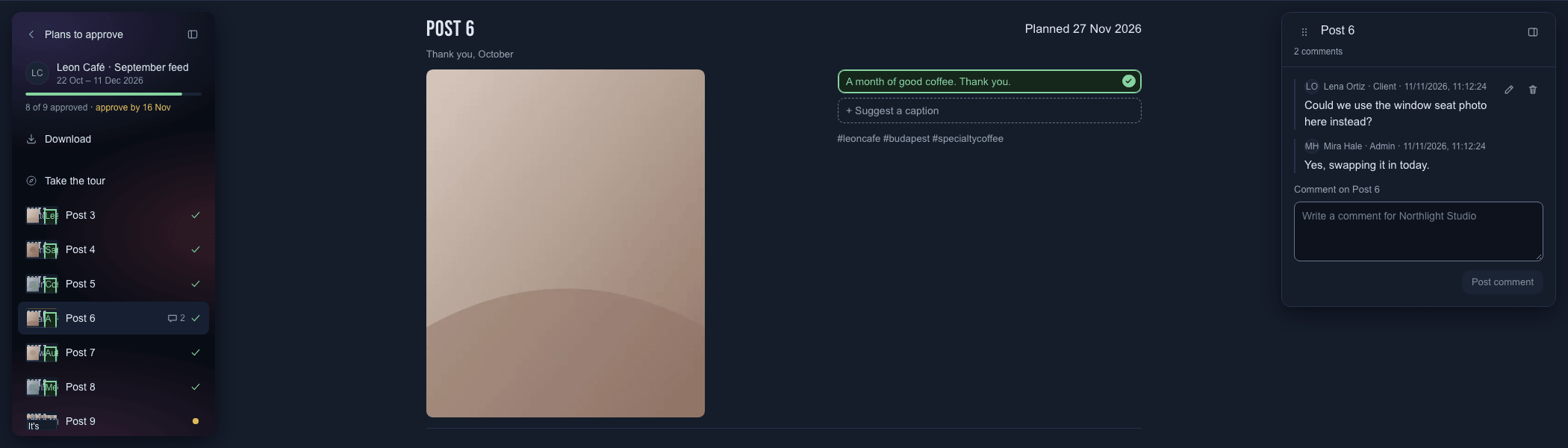
The pages menu shows the plan's approval progress, Download and a row for every page. Each row shows a small preview of the page, a tick once it is approved, a dot while it needs your approval, and how many comments it has. At the top, the plan shows how far its approval has got, for example "8 of 9 approved".
-
To see a swipe's photos large, select its row of pictures. This works on a swipe with 8 or more pictures.
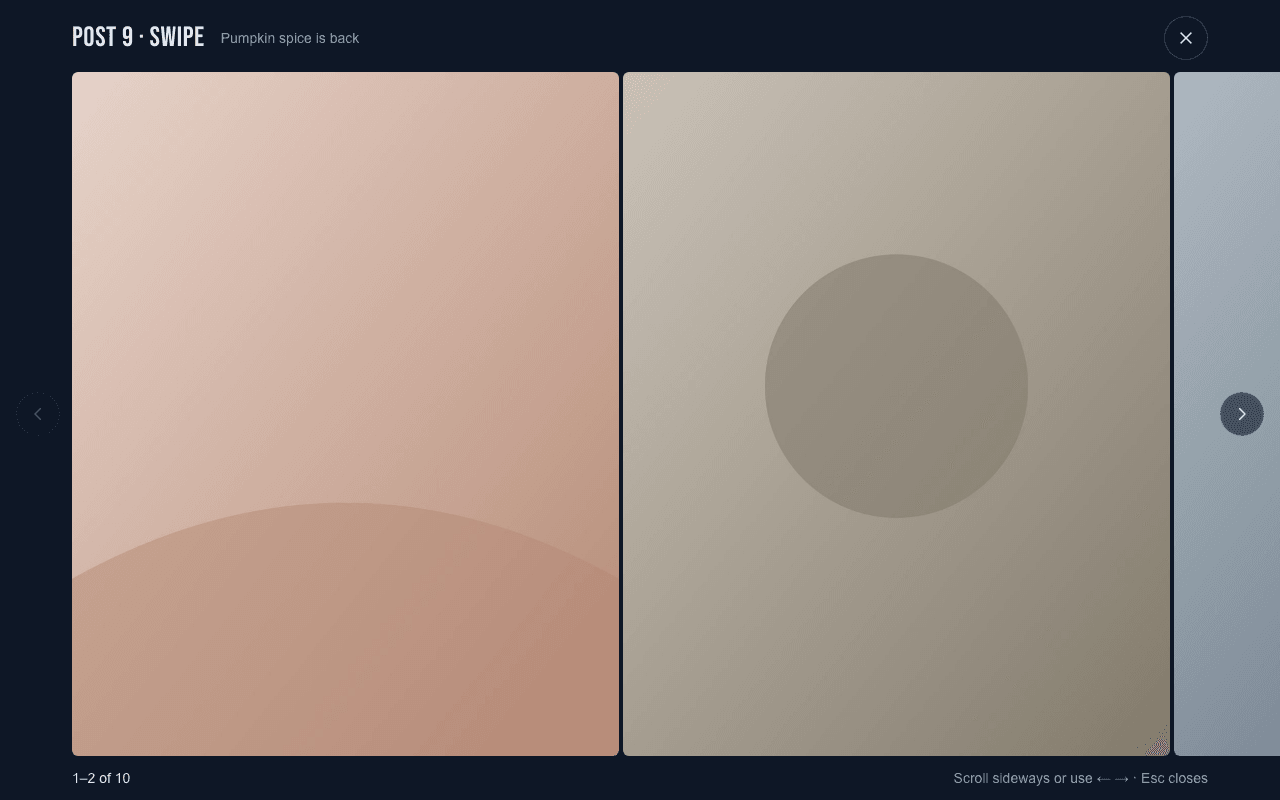
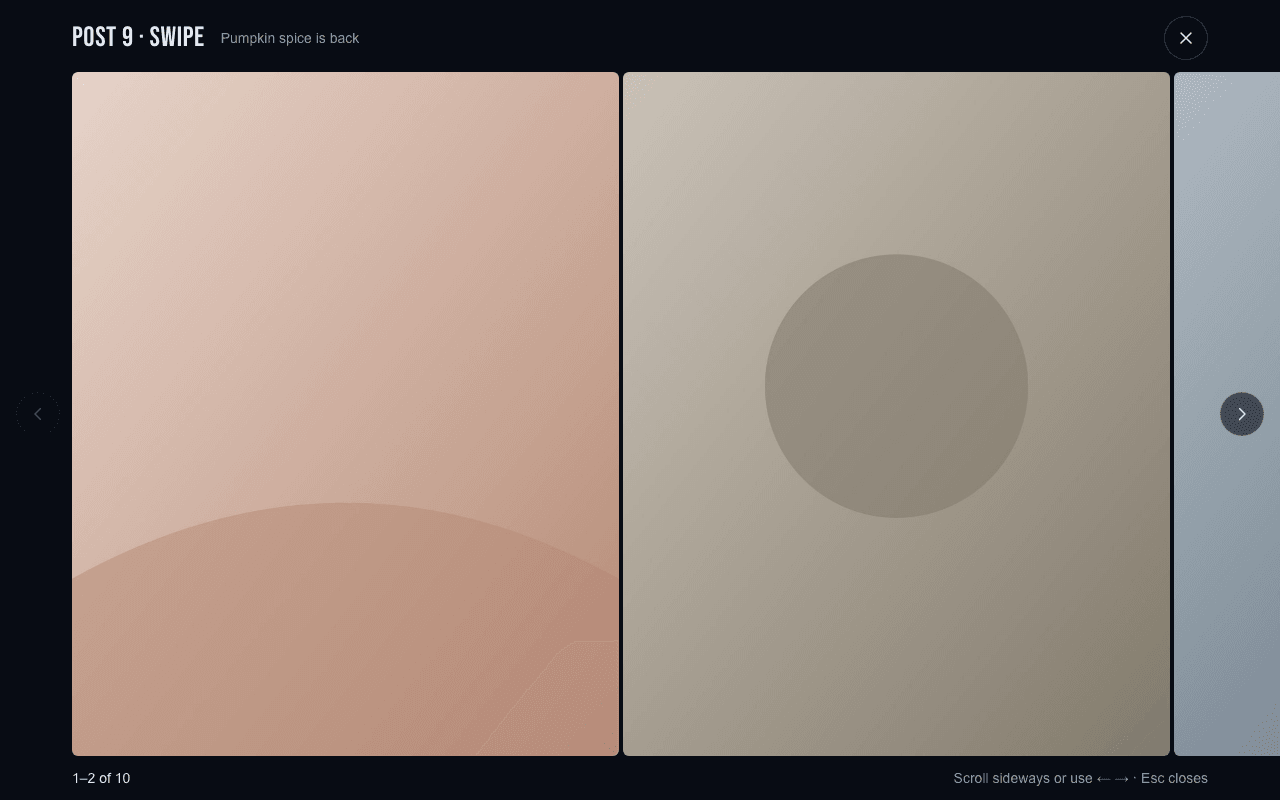
Scroll sideways, use the arrow buttons or the ← and → keys to see the rest. Press Escape or select the close button to go back to the page.
A video shows its poster, its length and a round play button. Select the button to watch it on the page, with sound and the player's own controls. Nothing plays by itself, only one video plays at a time, and a video pauses when you move to another page, open the comments or open the full-screen view. On a swipe with 8 or more items, select its row to watch the video full screen.
-
Select Comments at the top right to open the comments panel, write a comment and select Post comment.
The comments start closed, so the page is clear to read. The Comments button shows how many comments the page has. The panel follows the page you are on. Each post and story has its own comments. Each grid page carries that grid's comments, for feedback on the feed as a whole. The cover and Story designs have none: they say Comments are on each grid, post and story.
On a computer or tablet the panel floats over the page. If it is in your way, drag it by its handle, Move comments panel, at the left of its header. You can also select the handle and move the panel with the arrow keys. The panel stays where you put it on that device.
-
To keep a copy, select Download in the pages menu and choose PDF or PowerPoint. See Completed and unshared plans.
What happens next
Your agency sees your comment and gets a notification. To change or remove one of your own comments, use the pencil or bin icon beside it. A deleted comment stays in Recently deleted for 15 days.
When you are ready, approve the posts and stories.
Notes
- The comments always start closed. Once you open them they stay open as you move between pages, until you select Hide comments or reload. On a wide screen (1280 pixels or more) the pages menu opens by itself; on a narrower screen it starts closed. Both float over the page, which keeps its full size. Hide pages and Hide comments fold them into small buttons.
- The plan fills the screen, so the bell, Notifications and Sign out aren't there. To reach them, go back with the first row of the pages menu, Plans to approve (or Completed plans for a completed plan).
- The planned posting date is a guide to when your agency intends to post. It can still change. An alternative can have a different planned date from the original.
- The agency's internal notes are never shown to you.
- If Plans to approve says No plans shared with you yet. and the menu has no other plan pages, your agency has removed you from every client. Ask them to invite you again. You can still change your account or delete it.