

For agencies / Alternatives
Add an alternative
Add another version of a post on a new grid, blank or from a post that is not in a plan, and remove a grid you no longer need.
Who can do this: All staff
Steps
-
Open the post on the grid.
-
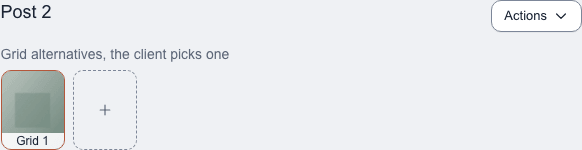
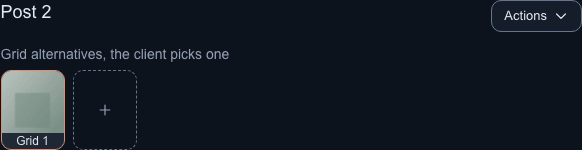
Under the post's title, Grid alternatives, the client picks one shows the post's versions, one per grid. Select the + button after the last one, then Blank. To use one of the client's posts that is not in a plan, choose From existing posts… instead (see below).
-
Confirm with Add alternative if Add an alternative? opens. It opens when adding the alternative withdraws an approval the client gave and someone at the client will get an email about it. It names who.
-
Add the alternative's media and captions, and change its topic or planned posting date if they differ.
What happens next
The app puts the alternative on the lowest grid that has no alternative for this post yet, creating the grid if needed, and opens it there. A grid selector appears above the feed. The new alternative starts with the original's format, size and planned posting date, and no media or captions.
Use a post that is not in a plan
If the other version already exists as one of the client's posts outside a plan, choose From existing posts… in step 2. After Add an alternative?, if it opens, Use an existing post as an alternative lists the client's posts that are not in a plan. Select one, then select Use as alternative.
- The post lands on the same grid a blank alternative would, and opens there.
- It keeps its media, captions, notes, format, size, planned posting date and hashtags.
- It leaves Not in a plan in Posts and stories.
- Only the client's feed posts are offered. Stories and posts that are already live are not.
Remove an alternative or a grid
- To delete one alternative, open it, then select Actions next to its title and Delete alternative. The slot shows grid 1's post on that grid again. The alternative goes to Recently deleted.
- Deleting a grid's last alternative removes the grid too, unless the client has chosen it. Restoring the alternative from Recently deleted brings the grid back.
- To remove a whole grid, open it, select … above the feed, then Remove grid 2 (or 3, 4, 5). This works for a grid that holds no alternatives and that the client hasn't chosen, for example one the client chose and then switched away from. Otherwise the button is turned off and says why. The grid goes to Recently deleted.
Notes
- A plan can have up to five grids. Grid 1 can't be removed.
- A post that is already live can't have alternatives.
- You can't add alternatives to a completed plan, or to an archived client's plans.