

For agencies / Planning
Add media and import from Drive
Upload photos and videos to a post or story set, fill empty slots in one go, or import from Google Drive.
Who can do this: All staff
Before you start
- Photos can be JPEG, PNG or WebP up to 50 MB. Videos can be MP4 or MOV up to 1 GB.
- To import from Google Drive, where it is available, connect your Google account once. The first import asks you to, or open your account card, then Profile, and select Connect Google Drive.
Steps
-
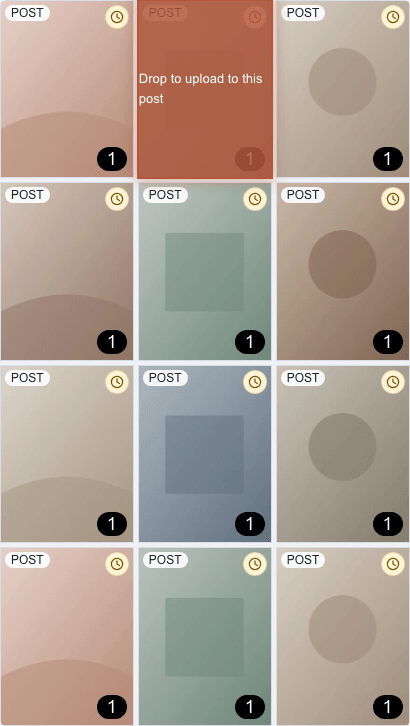
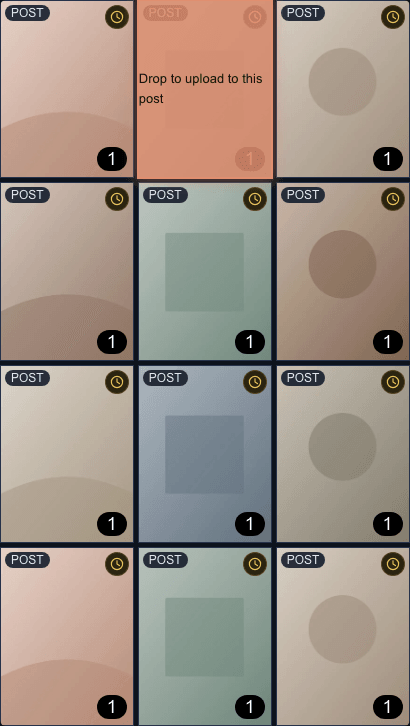
Open the post or story set. On a computer, you can also drop files onto a grid tile to open that post and upload into it. Only the tile under your pointer highlights. On an alternative grid, drop onto the alternative’s tile to upload into that version. A dimmed tile that shows grid 1's post there doesn't take the files into grid 1's post: they go into that grid's next free slot, as a drop on the grid does.
-
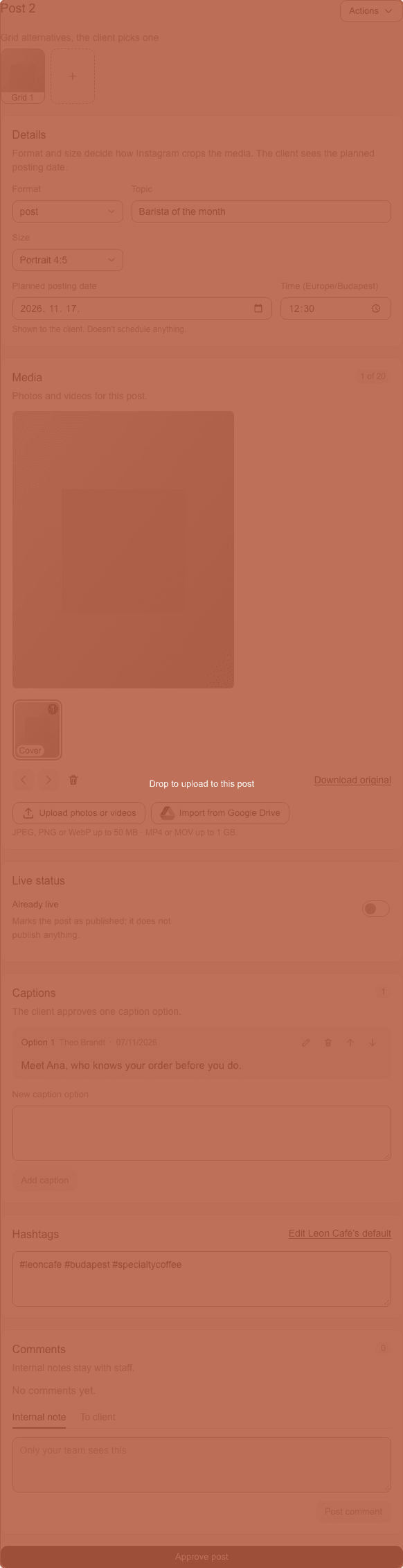
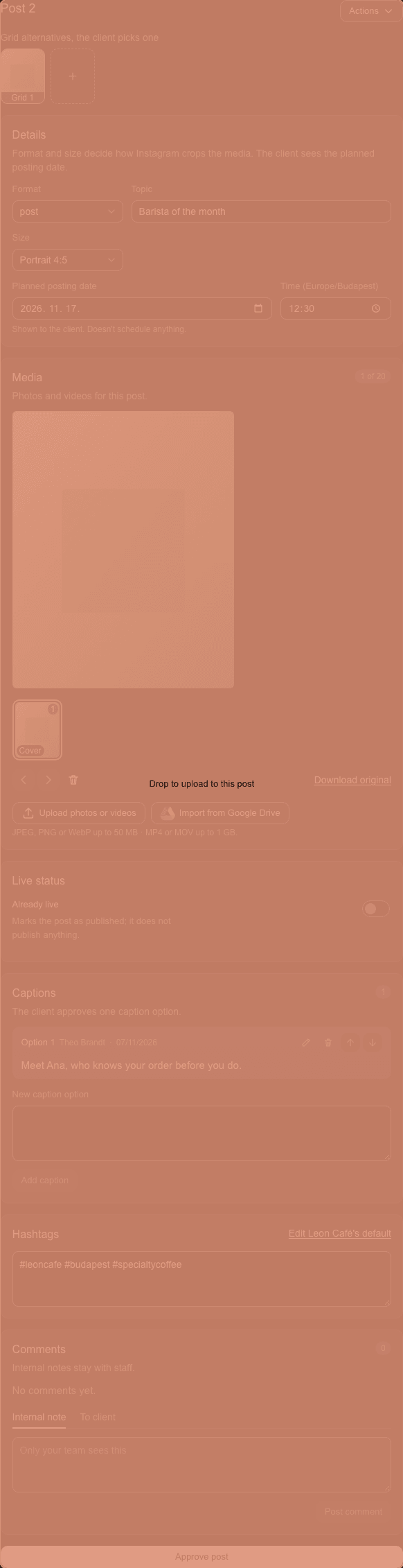
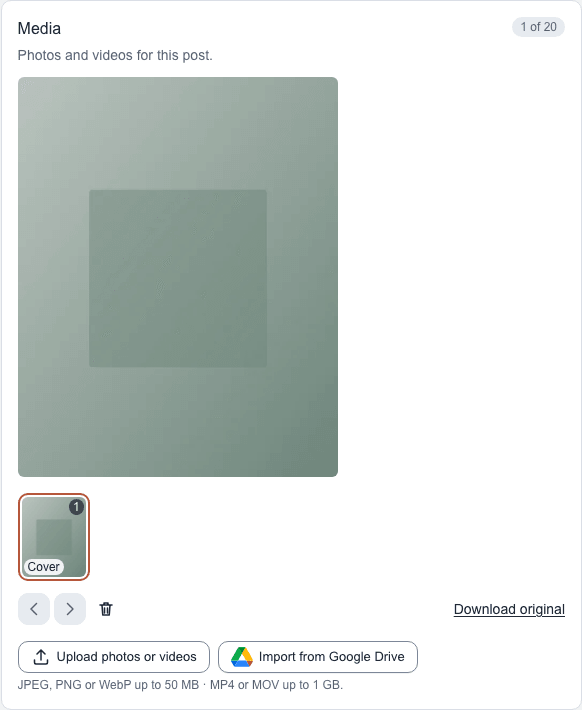
Select Upload photos or videos in Media and pick the files or a ZIP containing them. Or select Import from Google Drive and pick them there. On a computer, you can also drag files onto the open post or story panel. The highlighted panel reads Drop to upload to this post.
To paste an image into the open post, press Cmd+V or Ctrl+V. In Stories, click the panel you want first; before you click a panel, paste goes to the first visible one.
-
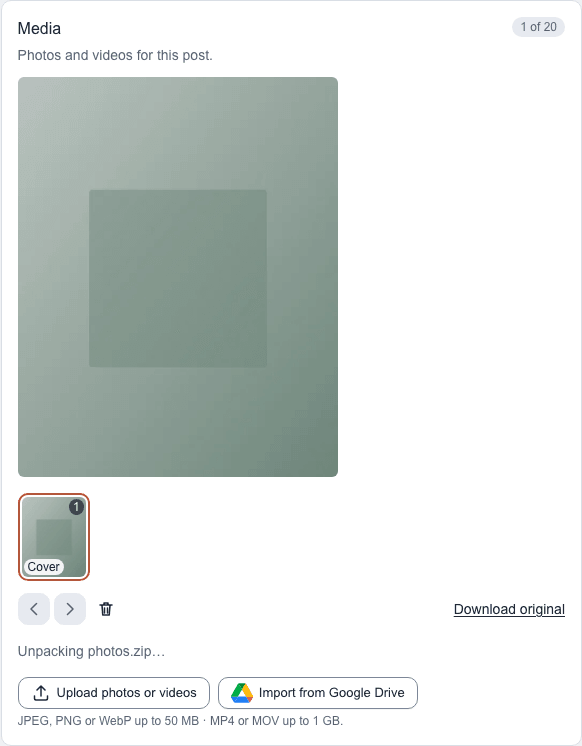
Wait for each file's tile to count up to 100%. A ZIP shows its unpacking status first.
-
Use the arrows under the preview to change the order. The first photo or video is the Cover.
To fill empty posts on the grid you have open, drop files anywhere in the grid column on a computer except on a post: a gap, the space around the grid or the bar above it. The whole column highlights with Drop to add to the grid. With no post open, Cmd+V or Ctrl+V pastes images into empty posts too. An open post receives pasted images first.
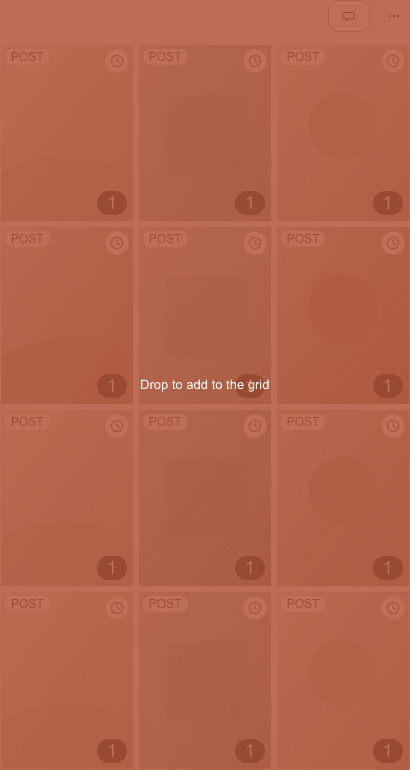
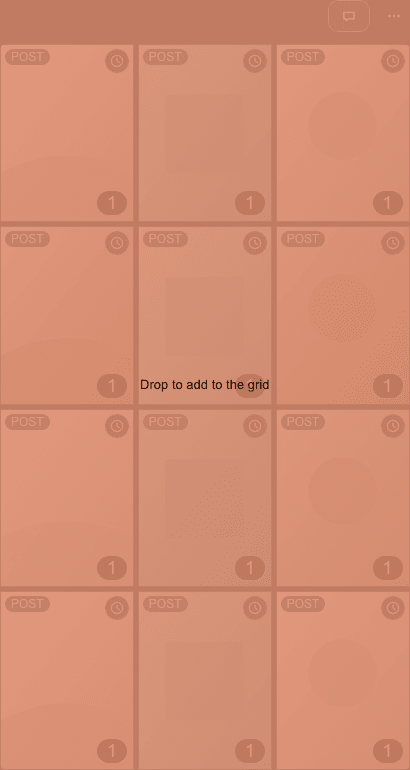
Each file goes into the first empty post in post-number order, even though the feed displays the newest post first. When no empty post is left, the app adds one post at the end for each remaining file, so the last row can hold one or two posts. A progress bar appears at the bottom of each receiving tile; the post panel stays closed. On grid 2 and up, the files fill that grid's free slots instead; see How alternative grids work.
To fill many posts with the file picker, select … above the grid, then Upload, and choose From this computer…, or Import from Google Drive where it is available. Where Google Drive isn't available, Upload opens the file picker straight away. Each file goes into the next empty post, and when none is left the app adds one post at the end per file. A progress bar appears on each receiving post's tile, and files that fail are named in the box above the grid. A Google Drive import shows its progress above the grid.
What happens next
The media shows on the grid and in the post. A video shows a spinner while it is processing. If the plan is shared and the post was approved, adding or removing media withdraws the client's approval, and they need to approve it again.
Notes
-
Pick or drop a ZIP on the grid, a tile or an open post or story panel. The app shows “Unpacking…” before uploading. Files inside each ZIP follow natural filename order (img2 before img10), including folder paths. Folder names are removed from the uploaded filenames. Several ZIPs and loose files keep the order you supplied them.
-
Each ZIP can be up to 500 MB, with at most 1,000 entries and 1 GB unpacked. Folders, __MACOSX, .DS_Store and Thumbs.db are skipped silently. Unsupported entries, including nested ZIPs, and oversized media are named in the error list. A damaged or password-protected ZIP is skipped with one error; the rest of your files can still upload.
-
Paste keeps working as usual while you type in a field or have a dialog open. Completed plans and archived clients are read-only, so you cannot upload, drop or paste media into them.
-
A grid or post upload accepts up to 60 supported files at once, counted after unpacking all ZIPs together with any loose files. If you exceed 60, nothing uploads.
-
A post or story holds at most 20 photos or videos. An upload, a Google Drive import or a Canva import that would take it past 20 is refused as a whole, with a message, and nothing is added. Delete a photo or video to make room. For the same reason, restoring a photo or video from Recently deleted is refused while its post holds 20.
-
Unsupported or oversized files are skipped. Grid drop and paste errors name the files above the grid. Select Dismiss to clear them, or start another batch to replace them. Errors for an open post or story appear under its thumbnails.
-
Upload, background drop and paste into empty posts work on every grid and fill the grid you have open. On grid 2 and up, a slot that shows grid 1's post dimmed isn't empty, so grid 1's posts never change. Dropping files on such a tile fills that grid's next free slot, as a drop on the grid does; dropping them on a post of that grid adds them to that post. To add media to that slot's grid 1 post, open it on grid 1.
-
The thumbnails sit five to a row beside the preview, each numbered by its position, and the Media heading counts them, for example "15 of 20". At 20 the count turns amber and Upload photos or videos is disabled until you delete one.
-
Select a thumbnail to see it large. Download original saves the file as you uploaded it.
-
The bin icon deletes the selected photo or video. It goes to Recently deleted for 15 days.
-
If a video can't be processed, try exporting it as MP4.
-
On Safari, Google's file picker can come up empty. Turn off Prevent Cross-Site Tracking in Safari's settings, or use the upload button, which reaches Google Drive through the Files app.