

For agencies / Planning
Create a plan
Start a new content plan for a client.
Who can do this: All staff
Before you start
- The client exists. See Add a client.
- As a Creative, you can create plans only for the clients assigned to you.
Steps
-
Open Draft plans in the menu.
-
Select New plan.
-
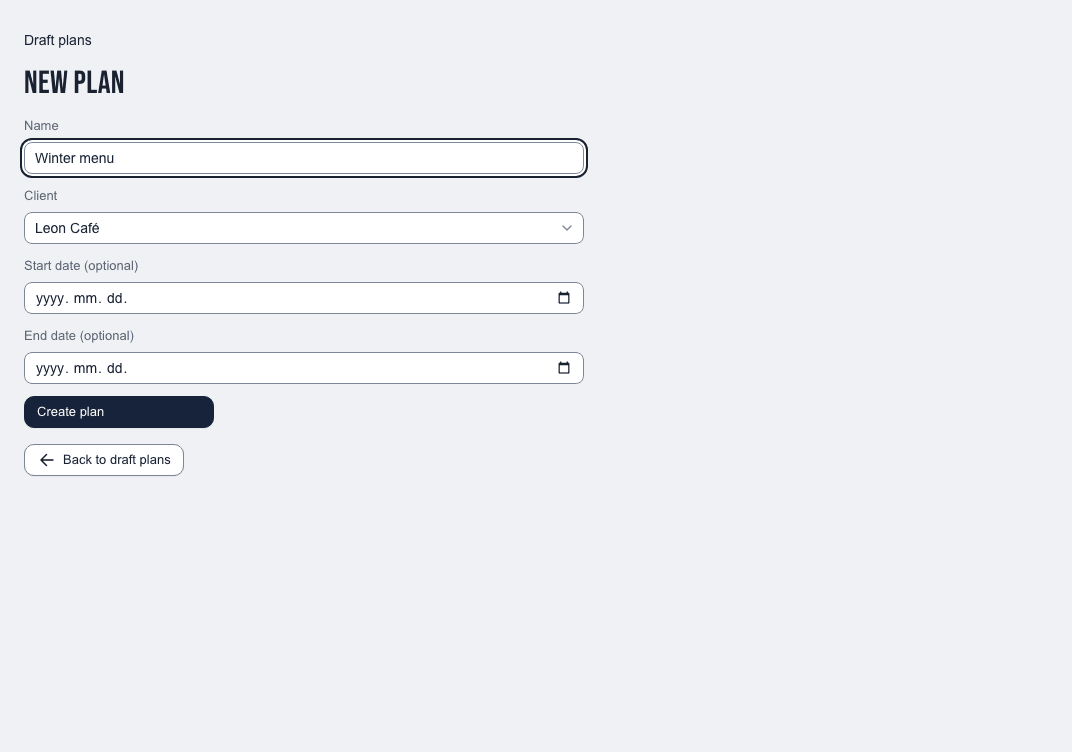
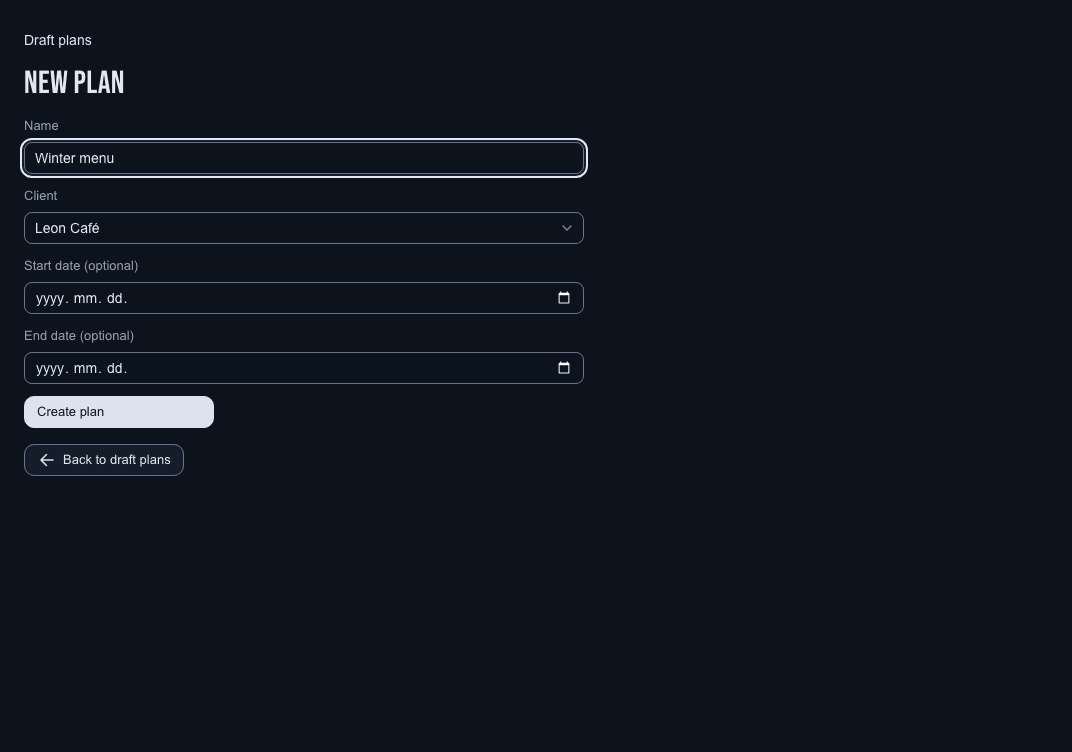
Enter a Name and choose the Client.
-
Fill in Start date (optional) and End date (optional) if you want them.
-
Select Create plan.
What happens next
The plan opens on its Grid, with four empty rows of three posts. It is a draft, so the client can't see it. It is listed under Draft plans until it is shared.
You can change the name and dates later in the plan's Settings tab, until the plan is completed; Reopen a completed plan to change them. The Plan panel there also has Approve by (optional), the day you ask the client to approve the plan by. You can set, change or clear it in draft, in review or after sharing, until the plan is completed. It saves as you go, and the client sees it once the plan is shared. Changing it once the plan is shared emails the client a few minutes after you stop changing it; see Share a plan with your client. The client can change only while the plan is a draft that holds nothing from the client. Client comments, caption suggestions, approvals, a chosen grid or posts that have gone live lock it to that client, including content in Recently deleted. The disabled Client field explains why and names the client. Create a new plan instead.