

For agencies / Your account
Change your password
Change your password when you know it, or reset it from the sign-in page when you don't.
Who can do this: All staff
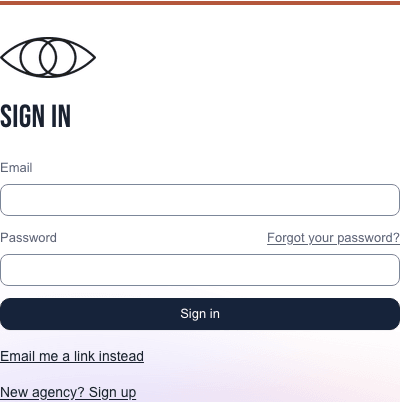
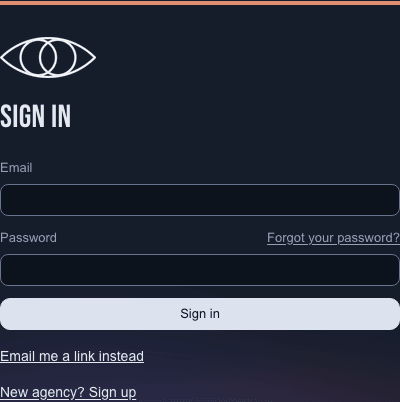
Passwords are optional for staff. The sign-in page sends an email link by default: enter your Email and select Email me a sign-in link. A link you ask for works once, for 1 hour. Asking for a new one cancels your earlier requested links. Sign-in links in welcome and admin emails last 7 days. Notification email buttons open the relevant page; if you are signed out, sign in first. You stay signed in for 30 days of use.
Choose Use password instead to sign in with an existing password. Email me a link instead returns to the default form.
Set your first password
- Open Account from your name card in the menu.
- In Set a password, select Email me a link.
- Open the email Set your password and select Choose a password. The link works for one hour.
- Type a New password of 8–128 characters, type it again under Repeat password, and select Update password.
The sign-in page says Password updated. Sign in with your new password. You are signed out on every device, and your unused sign-in links stop working. You can now sign in with a password or an emailed link. The panel changes to Password, with Change password.


Steps
- Open the card with your name at the foot of the menu. The Profile tab opens.
- Type your Current password in the Password panel.
- Type a New password of 8–128 characters, and type it again under Confirm new password.
- Select Change password.
What happens next
The panel says Password updated. Other devices were signed out. You stay signed in here. Everywhere else, sign in again with the new password or request a new sign-in link. Changing or resetting your password cancels all your unused sign-in links.
Forgot your password?
- Select Use password instead, then Forgot your password? on the sign-in page.
- Type your Email and select Send reset link.
- Open the email Reset your password and select Choose a new password. The link works for one hour.
- Type a New password, type it again under Repeat password, and select Update password.
The sign-in page says Password updated. Sign in with your new password. You are signed out on every device, and your unused sign-in links stop working.
If your account has no password, the same request sends a sign-in link instead.
Notes
-
An Admin can also send you a password reset email from your page under Agency, Team.
-
After five wrong current passwords in a short time, the panel says Too many attempts. and when to try again.
-
If no email arrives, check your spam folder. For your privacy, the app never says whether an address has an account.
-
To change the app's language, open the language button (a globe and the language's name, such as English) and pick a language. It's at the top right of every page, and at the top of the Menu on phones. Your choice is saved to your account.