

For agencies / Planning
Posts outside a plan
Create a post or story for a client without a plan, work on it in a panel, and add it to a plan later.
Who can do this: All staff
Steps
-
Open Posts and stories in the menu.
-
Select New post or New story.
-
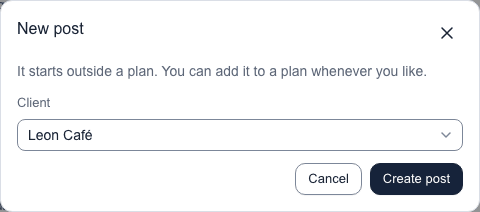
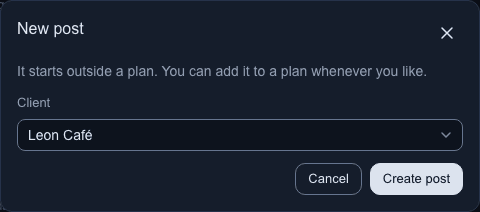
Choose the client.
-
Select Create post (or Create story).
What happens next
The post opens in a panel beside a short list of posts and stories. The panel has Details, Media, Already live, Captions, hashtags for posts, and Internal notes. Under the title it reads the client's name and Not in a plan.
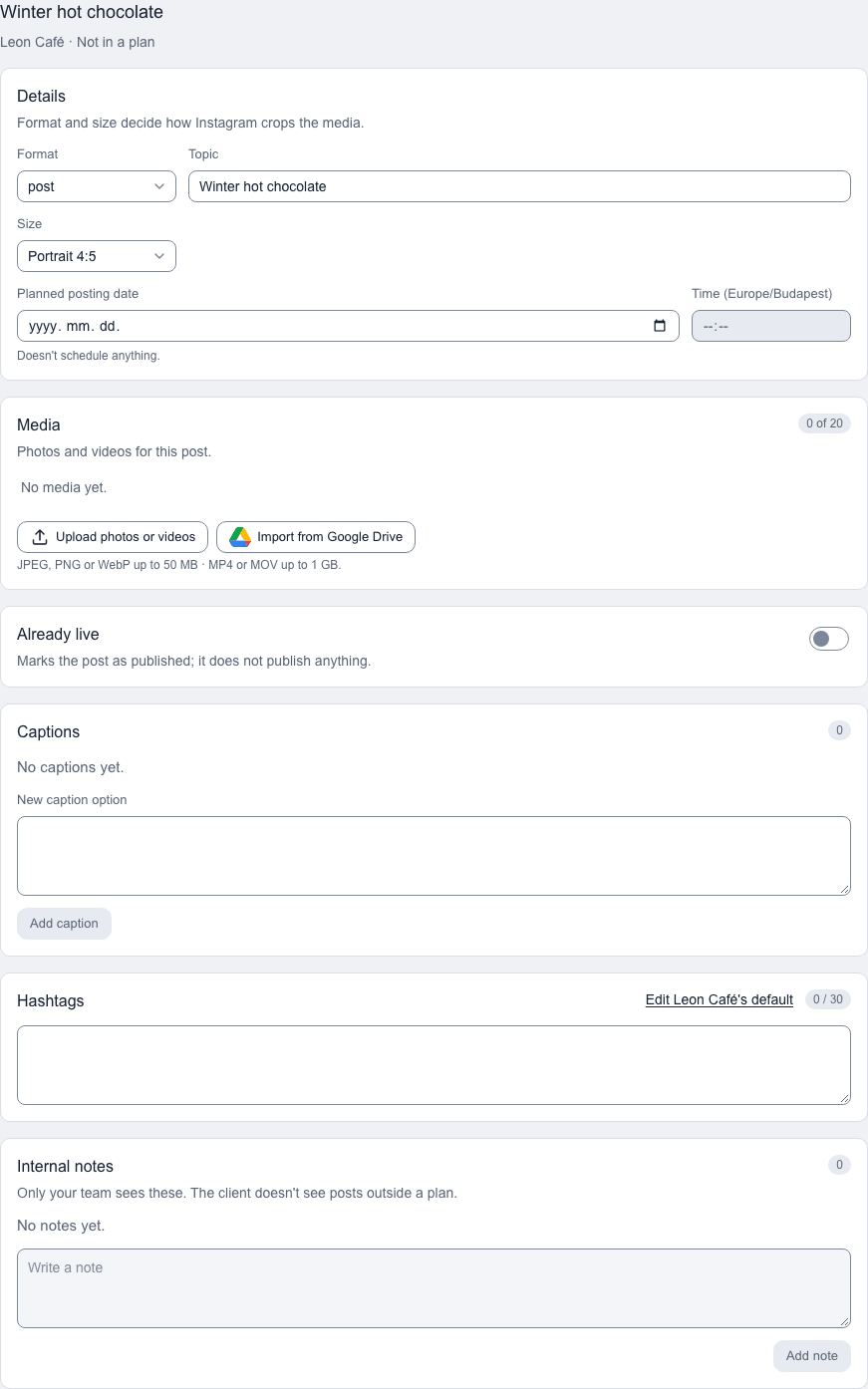
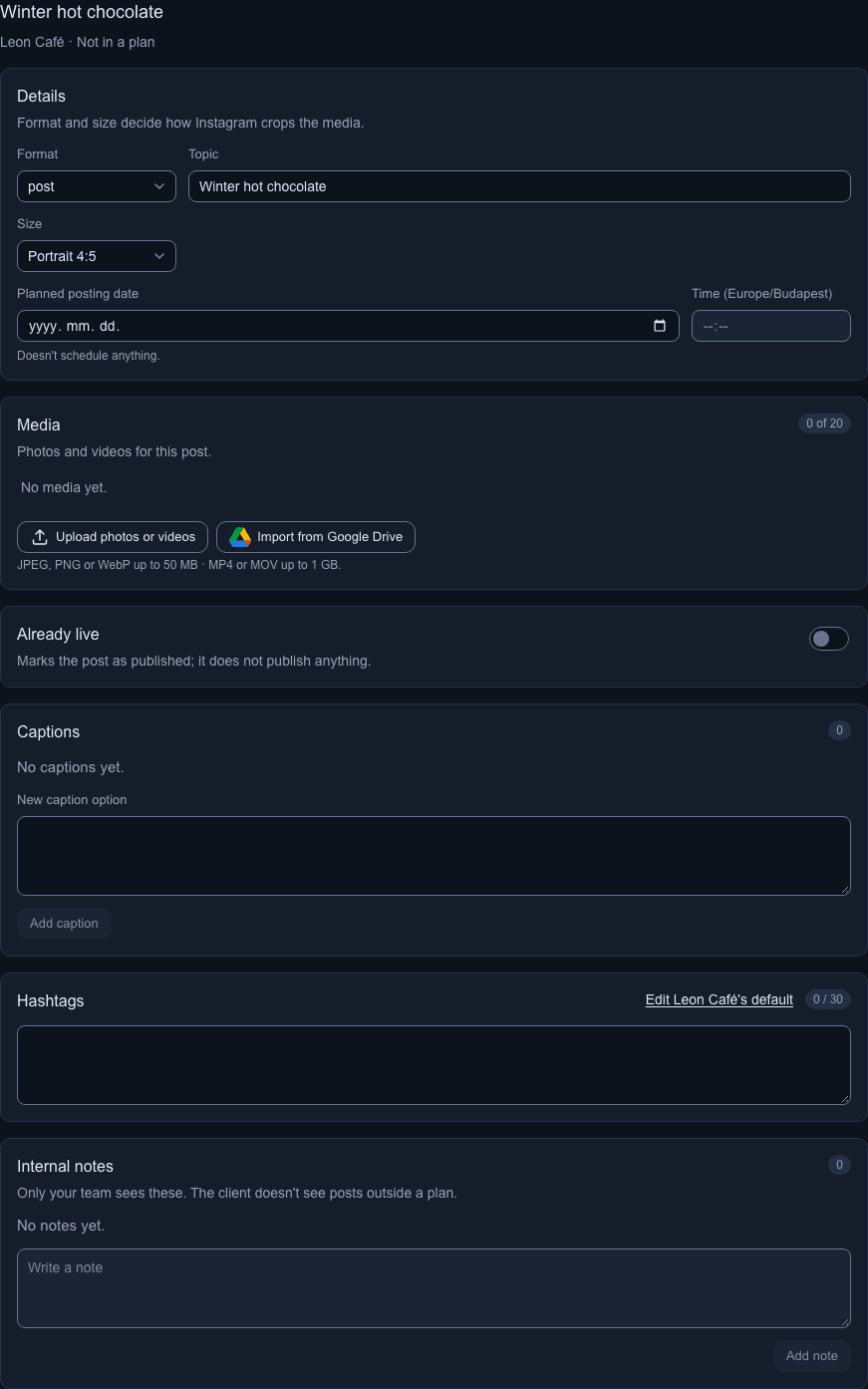
Select Back to list above the panel to return to the full list, with its filters. On a phone the panel replaces the list, so this is the way back.
Add posts to a plan
Move posts and stories from outside a plan into one of the client's open plans.
-
On Posts and stories, select the posts and stories to move. They must all belong to one client.
-
Select Add to plan….
-
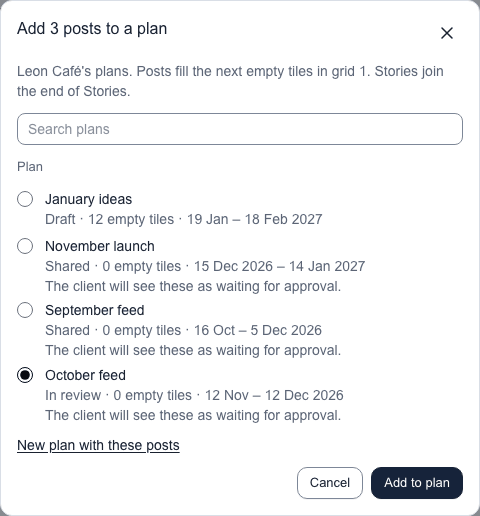
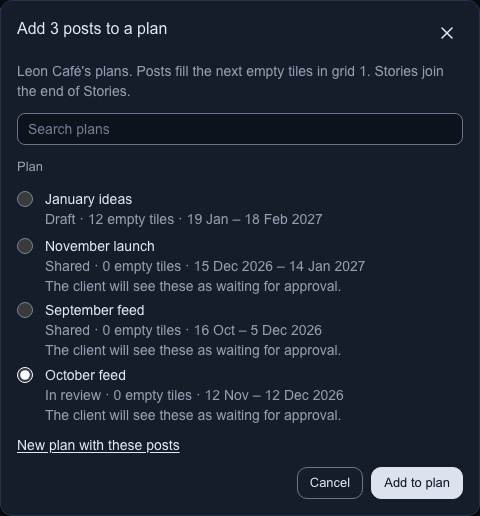
Choose a plan. The list shows the client's draft, in review and shared plans.
-
Select Add to plan.
A message says what moved, with Open plan to go to the plan.
- Posts fill the next empty tiles in grid 1, the top selected row first. A tile with anything on it is never overwritten. When the empty tiles run out, the grid grows by one tile for each post added.
- Stories join the end of Stories.
- Live posts can't move. Add to plan… turns off and says why when a selected post is live or already in a plan, or when the selection covers more than one client.
- Adding to a shared plan sends no notification, but your client can see the posts and approve them. In a plan that is in review or shared, they read Waiting.
- If no plan fits, select New plan with these posts in the dialog. The new plan form opens with the client set, and the posts join the plan when you create it. The link doesn't show with more than 100 selected.
From inside a plan
You can also pull a client's posts and stories in from the plan itself.
-
Open the plan on the grid you want to fill, select … above the grid, then Add post to plan. For stories, open Stories and select Add story to plan beside Add story set.
-
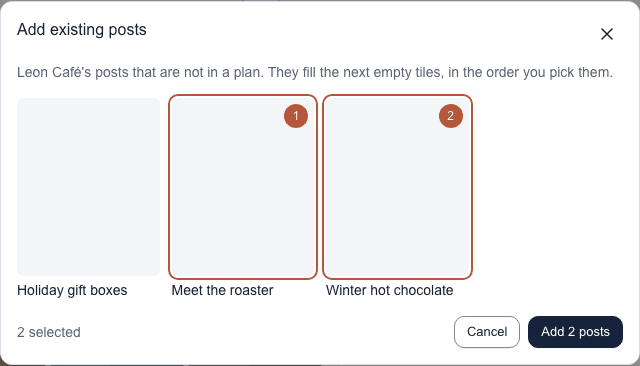
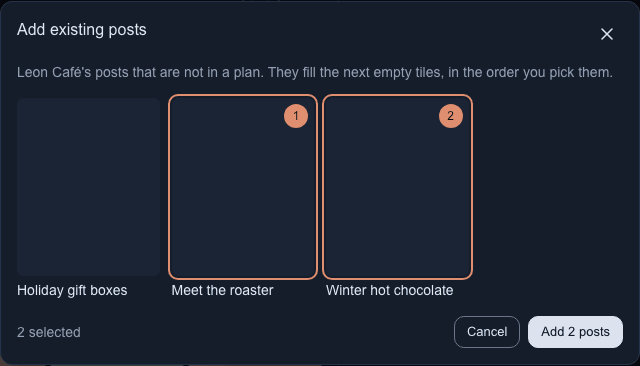
In Add existing posts (or Add existing stories), select the posts you want. A number on each shows the order you picked them in. Select a picked one again to take it back.
-
Select Add 2 posts (the number follows your picks).
The posts fill the next empty tiles in that order, and the first one opens in the panel. Stories join the end of Stories. A tile with anything on it is never overwritten, and on a shared plan your client sees them as Waiting. If the client has nothing outside a plan, the dialog says so and offers Go to Posts.
On grid 2 and up, the dialog names the grid, and the posts become its alternatives in its first free slots, with one slot added at the end for each post when none is free. Grid 1's posts don't change; see How alternative grids work.
Move a post out of a plan
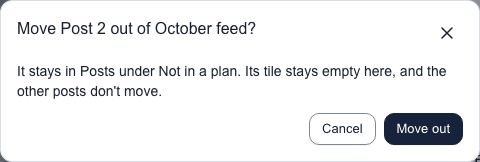
Take a post, an alternative or a story out of a plan. It stays in Posts and stories under Not in a plan, with its captions, media, comments and planned posting date.
-
Open the plan and select the post. For a story, find its set on Stories.
-
Select Actions at the right of the panel title, then Move out of plan. For a story, select Move out of plan in its set's header.
-
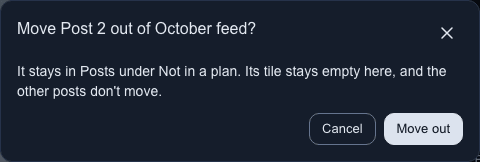
Read what the dialog says will stay and what will go.
-
Select Move out.
A message confirms the move, with Open post to go to the post. To move several at once, select them on Posts and stories and choose Move out of plan… in the bar.
- A post with no alternatives leaves an empty tile. The other posts don't move. An empty post with no alternatives can't move: Move out of plan is off, with the reason Already empty.
- An empty post is never moved to Posts and stories: an empty alternative is deleted, and so is an empty grid 1 post that has an alternative, while the alternative moves up and takes its tile.
- A post with alternatives is replaced by the alternative on the lowest grid number, which moves up to grid 1 and takes the tile.
- An alternative on its own leaves grid 1's post showing in its place. If that grid holds nothing else, it is removed too, unless your client chose it.
- A story leaves Stories, and the other story sets keep their places.
- Live posts can't move, and neither can a post with a live alternative. A completed plan can't change, and neither can an archived client's. The button turns off and says why.
- The post that leaves loses its approval. An alternative that moves up keeps its own.
- On a shared plan your client is told only when they had approved the post that leaves.
Notes
- Only your team sees a post or story outside a plan. Your client does not.
- Internal notes are the only comments here. Nobody is notified about them.
- Captions have no approval step, because your client does not review the post.
- Turn on Already live to record that the post is out, as on a plan post. See Mark posts live.
- Add photos and videos in Media. See Add media and import from Drive.
- You can only create a post or story for an active client.
Related
- Add an alternative, where a post outside a plan can also become a plan post's alternative
- Mark posts live
- Add media and import from Drive
- Comments and internal notes