

For agencies / Planning
Edit posts and stories
Arrange the feed, fill in each post and story set, and approve them internally before sharing.
Who can do this: All staff
Steps
-
Open the plan. Grid shows the feed, Stories shows the story sets. When every post on the current grid is empty, the detail column prompts you to drop photos on the grid or use Upload.
-
To bring in posts that exist outside the plan, select … above the grid, then Add post to plan. See Posts outside a plan.
-
Drag a tile onto another on the grid to swap the two posts.
-
Select a post to open it beside the grid.
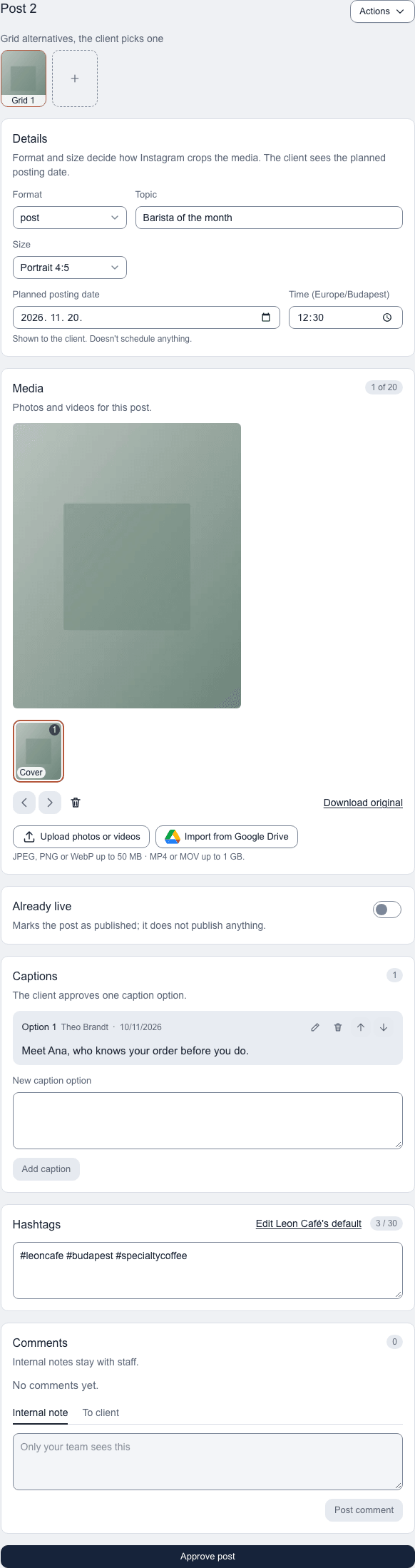
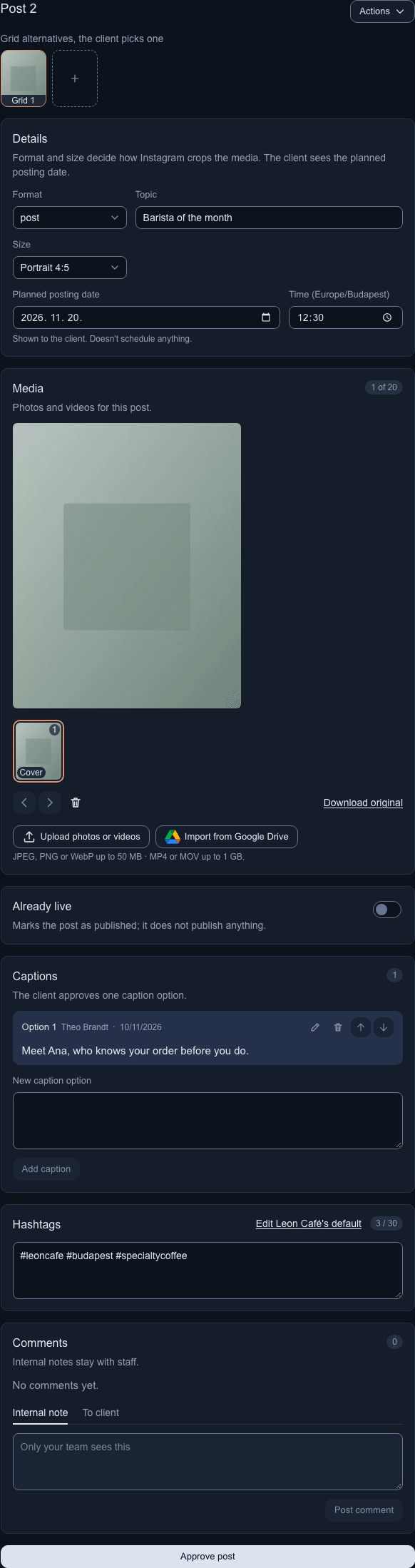
Post 2 of October feed. Approve post sits at the foot of the panel. -
Set the Format, Topic, Size and Planned posting date in Details. Reels and story sets are always Vertical 9:16, so their size can't be changed.
-
Upload the photos or videos in Media. See Add media and import from Drive.
-
Type a caption option under New caption option in Captions, and select Add caption. Add as many options as you like; the client approves one.
-
Check the Hashtags box under Captions. A new post starts with the client's default hashtags, and you can change them for this post. Admins can follow the link beside the panel's title to edit the client's default. The count beside the title shows how many you have, out of Instagram's 30; above 30 it turns amber and the panel says how many to remove. It is only a warning, and your text still saves. Story sets have no hashtags.
-
Select Approve post at the foot of the panel once the post is ready, or Approve story on a story set. Only Admins see it. Select Withdraw to take the approval back.
-
Open Stories and select Add story set for each story set, then add the visuals the same way. Use the arrows to move a story set up or down.
What happens next
Everything saves as you go. Posts you approve internally show a green tick on the grid. While the plan is a draft or in review, the client can't see it.
Notes
- …, at the right of the bar above the feed, opens the grid's options. On grid 1 they are Upload, Add post to plan, Rows, where + adds a row of three posts and − removes the last row, whether it holds one, two or three posts, and Show last 3 live posts, which adds the client's latest live posts below the Already live divider. On a phone they open as a sheet titled Grid 1 options. Grid 2 and up have the same options without Rows, plus Remove grid 2. To fill empty posts with media, use Upload; see Add media and import from Drive.
- Comments, the speech bubble beside …, shows how many comments the grid has. See Comments and internal notes.
- Reordering and adding rows work on grid 1 only. Upload and Add post to plan fill the grid you have open; see How alternative grids work.
- − turns off, with the reason The last row has posts, while that row holds a post on any grid, with The last row has items in Recently deleted while anything of that row, on any grid, is in Recently deleted, and with A plan needs at least one row when one row is left. A post whose hashtags differ from the client's Default hashtags isn't empty. Removing a row deletes it for good, so restore or permanently delete those items first. The grid is static: you can't remove a post from the middle. To close a gap, drag posts on grid 1. Your client still sees empty tiles in the deck and the exports.
- Changing a post's hashtags keeps its approval. On a post marked live they can't be changed.
- A completed plan is read-only, comments included. Reopen it to change anything.
- A plan of an archived client is read-only too. Unarchive the client to change it.
- Only Admins approve posts and stories internally, and only before the plan is shared.
How the grid lines up
The grid shows the feed as Instagram will, newest at the top left. The planned posts fill from the bottom, so the row touching Already live is always a full row of three. A short row sits at the top, with its posts pushed to the right. Posts marked live move below the Already live divider.
Turn on Show last 3 live posts under … above the feed to also show, below the divider, the three highest-numbered live posts of the client's most recent earlier plan, in grid order. Each is labelled "from" its plan's name and links there. You can turn it on once an earlier plan has a live post.