

For agencies / Clients & team
Client settings
What you can set on a client's page: its profile, default hashtags, users and email, archiving and deleting.
Who can do this: Admins
Open Clients and select the client's name. The settings are in framed panels. Changes save automatically, and ✓ Saved appears at the bottom of the screen. There is no Save button.
Profile
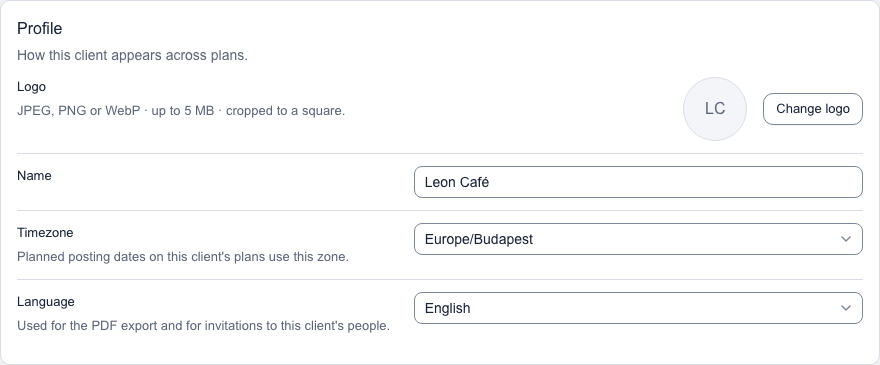
- Logo: select Change logo and pick a JPEG, PNG or WebP up to 5 MB and 40 megapixels. It is cropped to a square.
- Name: how the client appears across the app. Use a single line without web addresses or special control characters.
- Timezone: planned posting times on this client's plans use this zone.
- Language: the language of the invitations sent to this client's people.
Default hashtags
Default hashtags holds the hashtags this client's new feed posts start with. A new plan's posts copy them when you create the plan, and so do posts you add to a plan later. Posts that already exist keep theirs, so changing the default doesn't touch them. To change one post, edit its Hashtags box. See Edit posts and stories.
Users and email
The Users panel lists the client's users, and the Email notifications panel shows which emails each of them receives. See Add client users.
Archive client
Archive client is near the foot of the page, above Delete client. The app asks you to confirm. An archived client is hidden from the Clients table and from the client choice on new plans. Its plans become read-only for everyone, its users included: they can still open them and export PDFs, but nobody can change, comment on, approve, share, complete or delete them. Each plan says This client is archived. Unarchive it to make changes. To bring a client back, open it and select Unarchive. Its plans are then exactly as you left them.
Delete a client
Delete client is below Archive client. It permanently deletes the client with all its plans, posts, captions, comments and files, including anything in Recently deleted. Client users who have no other client are deleted too. People who also work with another client keep their account.
- Select Delete client.
- Check what will go: the dialog counts the plans, posts and files.
- To keep a copy, select each plan under Download PDFs first. Each PDF opens in a new tab.
- Type the client's name exactly as shown, under Type the client's name to confirm.
- Select Delete client.
If you haven't signed in within the last five minutes, the app first emails you a link to confirm it's you. Open it within 15 minutes, then delete again.
The Activity log keeps its entries and records the deletion.
Notes
- Creatives who open a client see its name and View plans only.