

For agencies / Planning
Work in the table
See every post, alternative and story of a plan in one list, and edit topics and planned dates in place.
Who can do this: All staff
Steps
-
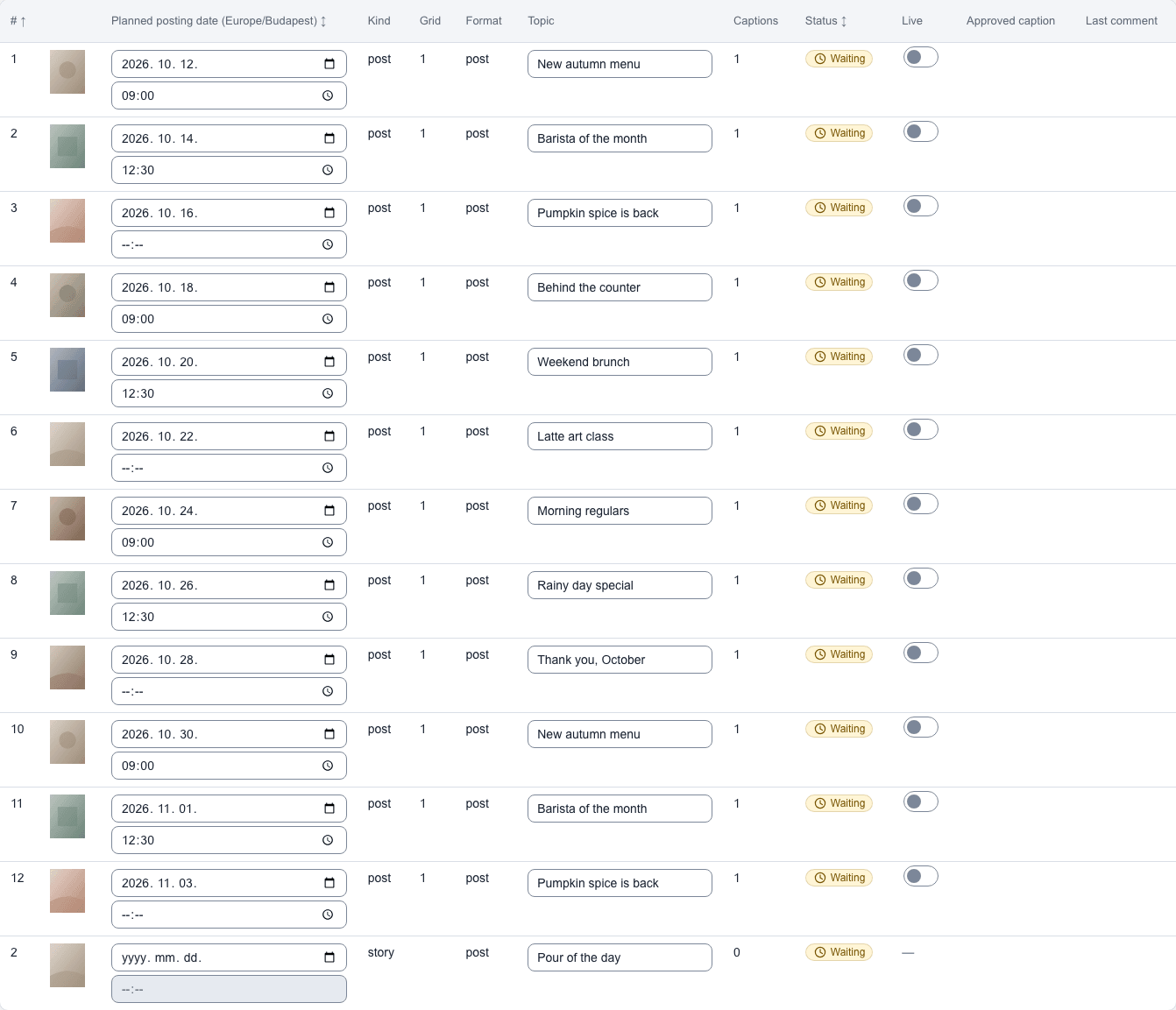
Open the plan and select Table.
-
Sort by #, Planned posting date or Status by selecting the column header. The table is sorted by # at first.
-
Type in a row's Topic or Planned posting date to change it. Both save as you type and show ✓ Saved at the bottom of the screen.
-
Use the Live switch to mark a post as already live. See Mark posts live.
-
Select a row's thumbnail to open that post or story.
What happens next
Your edits save as you type and show on the grid and in the post at once. The client sees the new topic and planned posting date once the plan is shared.
Notes
- Alternatives are listed under their post as "N · grid G", and the Grid column says which grid each row is on. Once the client approves a post, its versions on other grids show as Rejected.
- The Live column has a switch for each post on the chosen grid, or on grid 1 until the client chooses. Stories and the other versions show a dash.
- The Planned posting date column names the client's time zone, for example Planned posting date (Europe/Budapest).
- On a completed plan, or a plan of an archived client, the table is read-only.
- On a phone every table in the app shows as a list of cards. Here a Sort by menu replaces the column headers.