

For agencies / Clients & team
Invite staff and set roles
Invite Admins and Creatives to your agency and choose which clients each Creative works on.
Who can do this: Admins
Steps
-
Open Agency in the menu, then the Team tab.
-
Select Invite.
-
Enter the person's Email, choose a Role (Creative or Admin) and select Send invitation.
-
Select a Creative's name in the team list once they have joined.
-
Tick the clients they work on under Assigned clients. Changes save automatically.


If you reach an invitation limit, the error tells you when to try again: in minutes for waits under an hour, or in hours for longer waits.
What happens next
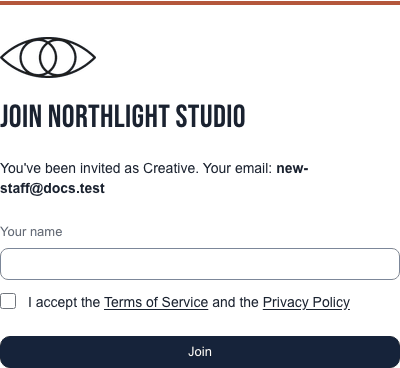
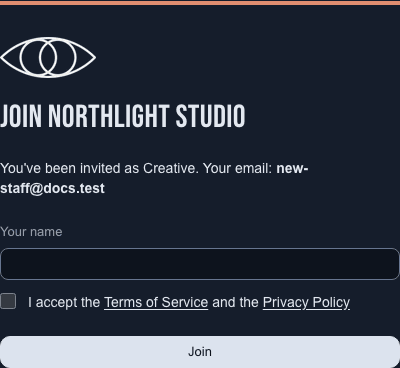
The person gets an email link. They enter their name and tick that they accept the Terms of Service and the Privacy Policy, then join straight away. No password is needed. They can later set one on Account, or keep signing in with emailed links.
A Creative sees only the clients you assign to them, with their plans.
| Admin | Creative | |
|---|---|---|
| Clients | Every client of the agency | Only assigned clients |
| Add, change, archive and delete clients, add client users | Yes | No |
| Delete Creatives | Yes | No |
| View as client | Yes | For assigned clients |
| Invite staff, assign clients, reset passwords | Yes | No |
| Team list under Agency | Yes | Read only |
| Create and edit plans | Yes | For assigned clients |
| Submit for review | Yes | Yes |
| Approve posts and stories internally | Yes | No |
| Approve and share | Yes | No |
| Unshare, Mark completed, delete a plan | Yes | For assigned clients |
| Restore a deleted plan | Yes | Plans they deleted |
| Delete forever a plan | Yes | No |
| Activity log and agency settings | Yes | No |
Notes
- Creatives open Agency to see who is on the team: name, email, role, how many clients and status. They can't invite anyone, open profiles or reset passwords.
- From a person's page you can also send a password reset email or disable their account everywhere. Admins can't disable another Admin. Client users are disabled per agency, from the client's page: see Add client users.
- You always see Invitation sent., whether or not the address already has an account. An address that already belongs to a client account or to someone at another agency gets no email.
- Client users are added from the client's page, not from Team.
- When we update the Terms of Service or Privacy Policy, everyone on the team, Admins and Creatives alike, is asked to accept them once the next time they open the app.